
What we’re detecting
This detection identifies a possible MFA Fatigue attack (also known as MFA Bombing), where an attacker already holds the user’s valid credential and fires multiple multi-factor authentication requests in a short time window until the victim approves one of them — out of fatigue, confusion, or social engineering. The rule correlates multiple MFA denials or timeouts followed by a successful sign-in for the same user and IP. In MITRE ATT&CK, the behavior maps primarily to T1621 (Multi-Factor Authentication Request Generation) and T1078 (Valid Accounts).
Why this still matters in 2026
Between 2023 and 2025, providers such as Microsoft significantly hardened the MFA push flow. The main improvement was making Number Matching mandatory in Microsoft Authenticator, drastically reducing classic “approve spam” attacks, where the user simply clicked “Approve” over and over with no context.
That didn’t remove the vector, though. The attack evolved. Instead of relying on psychological fatigue alone, operators started combining credential theft with real-time social engineering. The current pattern usually involves the attacker calling the victim pretending to be IT support, the SOC, or the Identity Management team, and instructing the user to enter the number displayed in the Authenticator prompt. In practice, Number Matching removed the “click fatigue”, but it does nothing for scenarios where there is active human manipulation.
On top of that, many environments still carry significant operational gaps:
- Users without proper training to recognize suspicious prompts.
- Permissive Conditional Access.
- No FIDO2 or phishing-resistant MFA.
- No correlation between MFA denials and subsequent authentications.
- Hybrid environments where users keep approving prompts on personal devices.
That’s why, even in 2026, detecting patterns of multiple denials followed by a success is still relevant — especially as an early indicator of identity compromise.
The pattern in the logs
The detection uses the SigninLogs table from Microsoft Entra ID and correlates MFA authentication events within a short time window. The focus is on the fields inside AuthenticationDetails.authenticationStepResultDetail, where specific messages indicate:
- Explicit MFA denial.
- Timeout with no response from the user.
- A later successful authentication.
The main fields analyzed are:
- UserPrincipalName
- IPAddress
- AuthenticationRequirement
- AuthenticationDetails
- DeviceDetail
- LocationDetails
- TimeGenerated
The query treats the following pattern as suspicious:
- 5 or more MFA denials.
- A maximum 10-minute window.
- At least 1 successful MFA authentication after the denials.
Anonymized event example:
{
“UserPrincipalName”: “j.smith@contoso.com”,
“IPAddress”: “185.xxx.xxx.21”,
“authenticationStepResultDetail”: “MFA denied; user declined the authentication”,
“operatingSystem”: “Windows 11”,
“browser”: “Chrome”,
“city”: “Toronto”,
“countryOrRegion”: “Canada”,
“TimeGenerated”: “2026-05-11T14:22:31Z”
}
Subsequent event:
{
“UserPrincipalName”: “j.smith@contoso.com”,
“IPAddress”: “185.xxx.xxx.21”,
“authenticationStepResultDetail”: “MFA successfully completed”,
“TimeGenerated”: “2026-05-11T14:25:02Z”
}
Improving Microsoft’s built-in detection
Microsoft’s built-in rule (more than 10 denials in 5 minutes + a success) was calibrated for classic automated attacks. The human vector, with a pause for the phone call, slips through. I rewrote it with three adjustments: the threshold set to more than 5 denials in 10 minutes, TimeGenerated instead of ingestion_time(), and bin(TimeGenerated, 10m) in the summarize — the last one splits the day into independent windows, preventing multiple bursts from being aggregated into a single record.
kql
SigninLogs
| where TimeGenerated > ago(1d)
| where AuthenticationRequirement == “multiFactorAuthentication”
// Converts dynamic fields to allow access to nested attributes
| extend DeviceDetail = todynamic(DeviceDetail), LocationDetails = todynamic(LocationDetails)
| extend
OS = tostring(DeviceDetail.operatingSystem),
Browser = tostring(DeviceDetail.browser),
State = tostring(LocationDetails.state),
City = tostring(LocationDetails.city),
Region = tostring(LocationDetails.countryOrRegion)
// Classifies the authentication result using ResultType (stable), with a string fallback
| extend AuthOutcome = case(
ResultType == 0, “Success”, // 0 = successful sign-in
ResultType == 500121, “FailedMFA”, // 500121 = failure during MFA challenge
ResultType == 50158, “FailedMFA”, // 50158 = external sec challenge not satisfied
ResultType == 50097, “FailedMFA”, // 50097 = device auth required
“Other”
)
// Groups by user + IP + location + 10-minute window
| summarize
FailedMFAAttempts = countif(AuthOutcome == “FailedMFA”),
SuccessfulAttempts = countif(AuthOutcome == “Success”),
InvolvedOS = make_set(OS, 5),
InvolvedBrowser = make_set(Browser),
StartTime = min(TimeGenerated),
EndTime = max(TimeGenerated)
by UserPrincipalName, IPAddress, State, City, Region, TimeBucket = bin(TimeGenerated, 10m)
// Suspicious pattern: 5 or more MFA failures + at least 1 success in the same bucket
| where FailedMFAAttempts >= 5 and SuccessfulAttempts >= 1
// Final alert enrichment
| extend
Name = tostring(split(UserPrincipalName, ‘@’, 0)[0]),
UPNSuffix = tostring(split(UserPrincipalName, ‘@’, 1)[0])
Configuring the alert
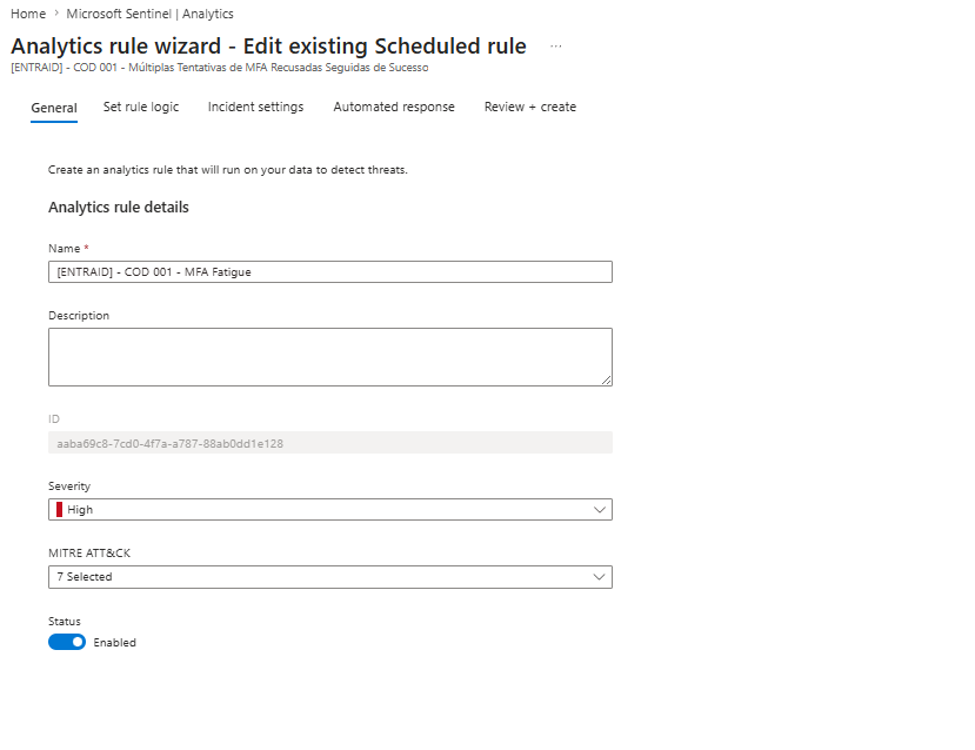
In Sentinel, go to Analytics > Create > Create a new Scheduled rule
Give it a name and description that best fit your environment, and map the following MITRE techniques:
- Credential Access
- Valid Accounts
- Credential Stuffing
- Persistence
- Multi-Factor Authentication Request Generation
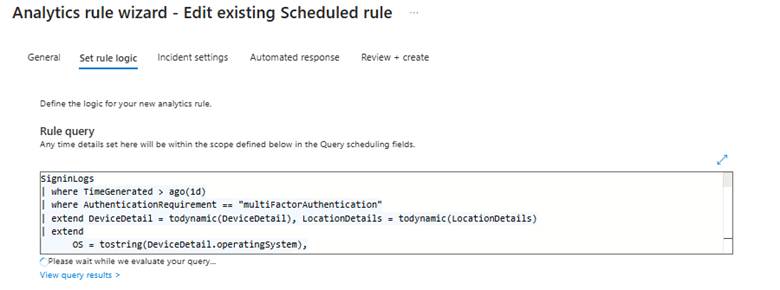
In Set rule logic, configure the query explained earlier (remove all the blank lines and the comments — Sentinel is quite picky about that):
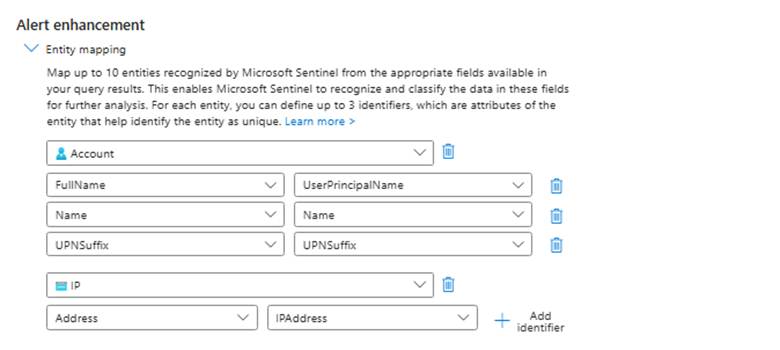
In Entity mapping, configure:
| Entity Type | Identifier | Mapped Field |
| Account | FullName | UserPrincipalName |
| Account | Name | Name |
| Account | UPNSuffix | UPNSuffix |
| IP | Address | IPAddress |
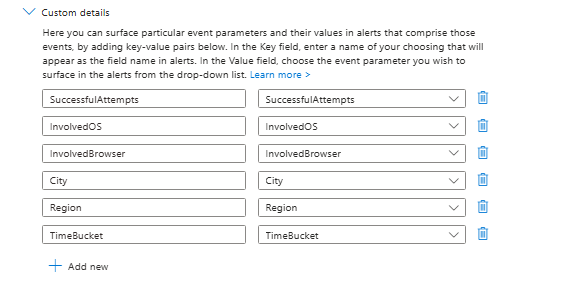
In Custom details, configure:
| Key (name shown in the alert) | Value (query column) |
| SuccessfulAttempts | SuccessfulAttempts |
| InvolvedOS | InvolvedOS |
| InvolvedBrowser | InvolvedBrowser |
| City | City |
| Region | Region |
| TimeBucket | TimeBucket |
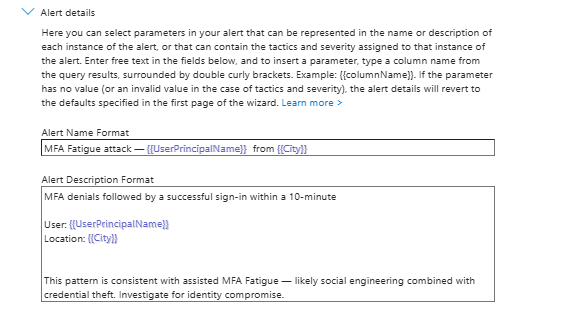
In Alert details, configure something like:
- Alert Name Format
MFA Fatigue attack — {{UserPrincipalName}} from {{City}}
- Alert Description Format
MFA denials followed by a successful sign-in within a 10-minute
User: {{UserPrincipalName}}
Location: {{City}}
This pattern is consistent with assisted MFA Fatigue — likely social engineering combined with credential theft. Investigate for identity compromise.
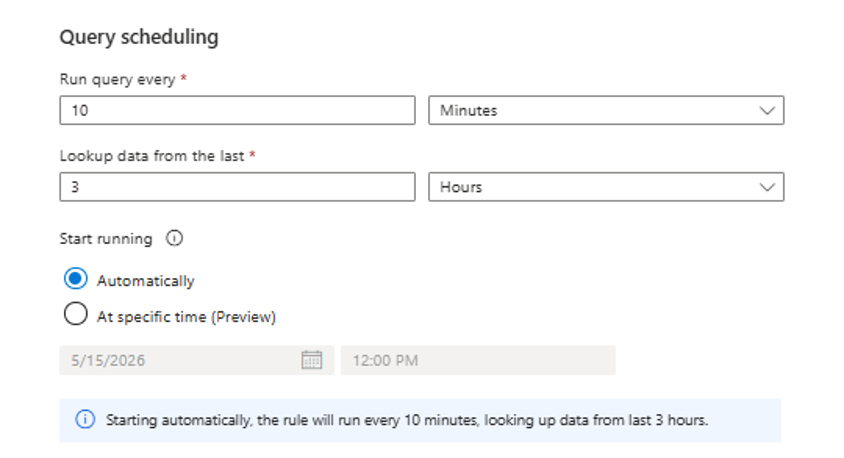
Set the query to run every 10 minutes and look back over the last hour
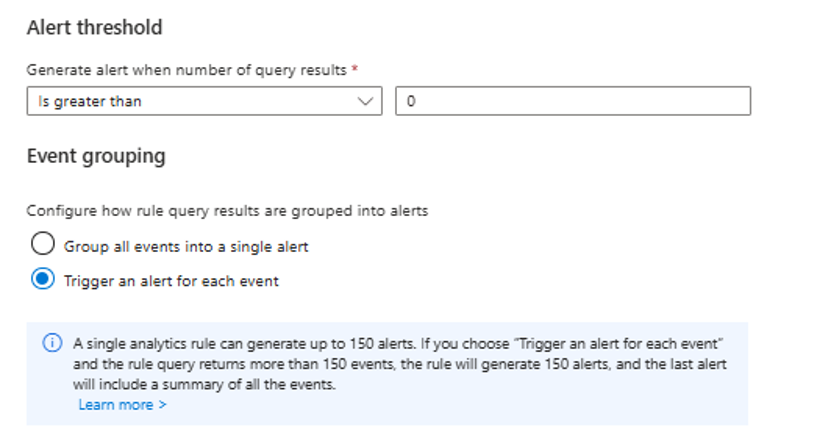
In Alert threshold, keep it greater than 0 and set it to fire an alert for each event
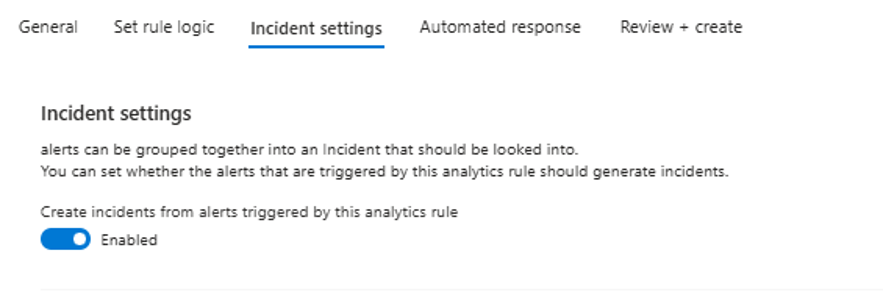
Finally, in the Incident settings tab, configure the alert to create an incident:
Testing the alert
Testing this alert is straightforward: I authenticated 6 times, denying MFA in 5 of them and approving the last one — the alert triggered successfully:
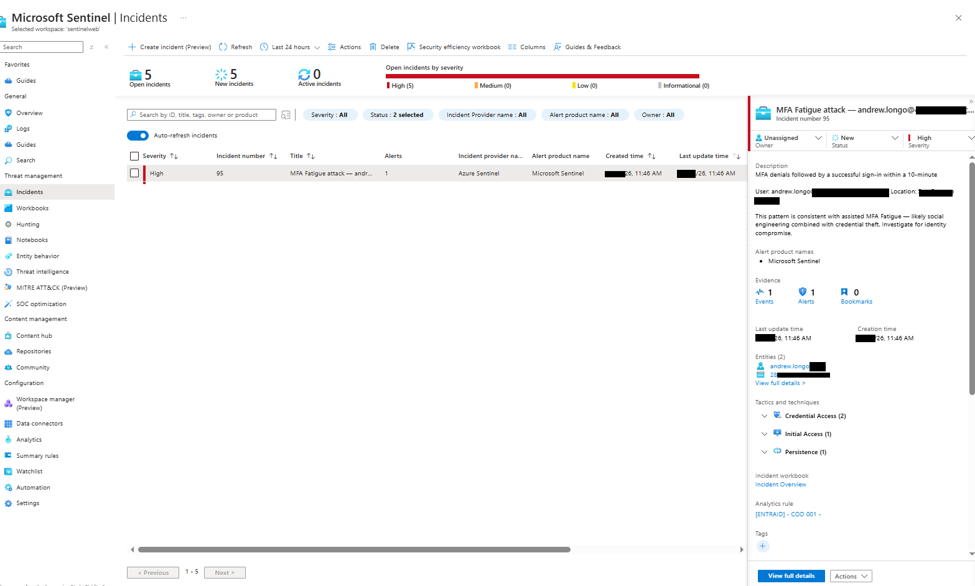
The alert generated an incident with enriched information, ready for triage
Anatomy of the alert
The alert returns enough information to allow a reasonably fast initial triage without needing to immediately pivot manually across multiple tables. The main fields returned are:
- Affected user (UserPrincipalName)
- Source IP address
- City, state, and country/region
- Operating system used
- Browser used
- Number of MFA failures
- Number of successes
- Time window between the first and last attempt
The IP lets you check external reputation and identify possible distributed attack patterns or VPN/TOR usage. The geographic fields help identify sign-ins outside the user’s usual behavior or from countries that are unusual for the organization. The OS and browser data help compare against the user’s expected baseline — for example, a user who normally authenticates from an iPhone/Safari suddenly showing up on Windows/Chrome.
The time window also matters operationally. Genuine MFA Fatigue attacks usually show high temporal density: multiple attempts within a few minutes. That is what distinguishes this behavior from occasional authentication failures spread across the day.
Where the detection falls short
Useful as it is, this detection has important limitations. Legitimate users often deny MFA prompts by mistake or let notifications expire, especially on mobile devices with multiple accounts configured. That can generate false positives — mainly in environments with poorly trained users or with applications that renew tokens aggressively.
Another point is that the detection depends on a subsequent success. If the user never approves the MFA, the attack may not generate an alert, depending on the logic implemented. The reverse is also true: sophisticated attacks can use different IPs, different devices, or spread attempts over longer periods to evade simple thresholds.
In addition, environments using phishing-resistant MFA (FIDO2, Windows Hello for Business, or passkeys) drastically reduce the effectiveness of this kind of attack, making the use case less relevant over time for mature organizations.
Framework mapping
The detection maps directly to the MITRE ATT&CK framework in the following techniques:
- TA0006 – Credential Access
- T1078 – Valid Accounts
- T1110.004 – Credential Stuffing
- TA0003 – Persistence
- T1621 – Multi-Factor Authentication Request Generation
Within the National Institute of Standards and Technology NIST CSF 2.0, the use case fits mainly into the functions:
- Detect (DE)
- Respond (RS)
Especially in:
- DE.CM — Security Continuous Monitoring
- RS.AN — Incident Analysis
- RS.MI — Mitigation
This alert also ties directly into Zero Trust architectures and identity enforcement, particularly in scenarios where Conditional Access is the main preventive control. It can be referenced later alongside the architecture post on NIST SP 800-207.
Incident response plan
Preparation
Before the incident happens, the organization needs to make sure minimum identity controls are already in place. That includes mandatory MFA for all users, adequate Conditional Access policies, integration between Entra ID and the SIEM, plus automated playbooks for session revocation and emergency account blocking.
It is also important that the environment has enough telemetry for later investigation, including adequate retention of authentication logs, Device Identity, and administrative activity. Users should be trained regularly to identify unsolicited MFA prompts and never approve authentications initiated by third parties.
More mature environments should consider progressively adopting phishing-resistant MFA, such as FIDO2, passkeys, or Windows Hello for Business.
Detection and analysis
Once the alert fires, the first goal is to validate whether the behavior represents a legitimate sign-in attempt or a possible credential compromise.
The initial investigation should answer:
- Has the user used this IP before?
- Is the geolocation consistent with the expected behavior?
- Does the device match the user’s baseline?
- Were there correlated Impossible Travel, Token Theft, or Password Spray alerts?
- Does the user confirm receiving unexpected MFA prompts?
The IP should be checked against external reputation sources:
It is also important to check whether there was:
- Creation of inbox rules.
- Suspicious OAuth consent.
- Creation of persistent tokens.
- Changes to Conditional Access.
- Privilege escalation after the sign-in.
Containment
If there is reasonable evidence of compromise:
- Temporarily block the affected account.
- Revoke active sessions in Entra ID.
- Invalidate refresh tokens.
- Require an immediate password reset.
- Block known malicious IPs via Conditional Access or firewall.
In parallel, run hunting to identify:
- Other users authenticating from the same IP.
- The same device fingerprint.
- The same ASN or geolocation.
- Other MFA Fatigue patterns.
If the user approved the MFA after a suspicious phone call, treat the incident as a possible confirmed compromise.
Eradication
After initial containment:
- Review authorized OAuth applications.
- Revoke suspicious consents.
- Validate recent administrative changes.
- Review the creation of forwarding rules in Exchange Online.
- Investigate access to SharePoint, OneDrive, Teams, and Azure resources.
If there are signs of persistence:
- Rotate related privileged credentials.
- Review administrative groups.
- Validate new devices registered in the tenant.
Post-incident and continuous improvement
After closure:
- Document the full timeline.
- Record the observed IOCs.
- Refine the detection thresholds.
- Add complementary correlations:
- Impossible Travel
- Password Spray
- OAuth abuse
- Token theft
- Post-login privilege escalation
It is also advisable to run controlled simulations using:
The ultimate goal is not just to detect MFA Fatigue, but to progressively reduce reliance on traditional MFA push as the primary authentication control.
Next steps
The detection described here catches the behavioral pattern, but real prevention requires taking traditional push out of the equation. Phishing-resistant MFA (FIDO2, passkeys, or Windows Hello for Business) eliminates the human vector because there is no “number to read out over the phone” — possession of the key is the factor.